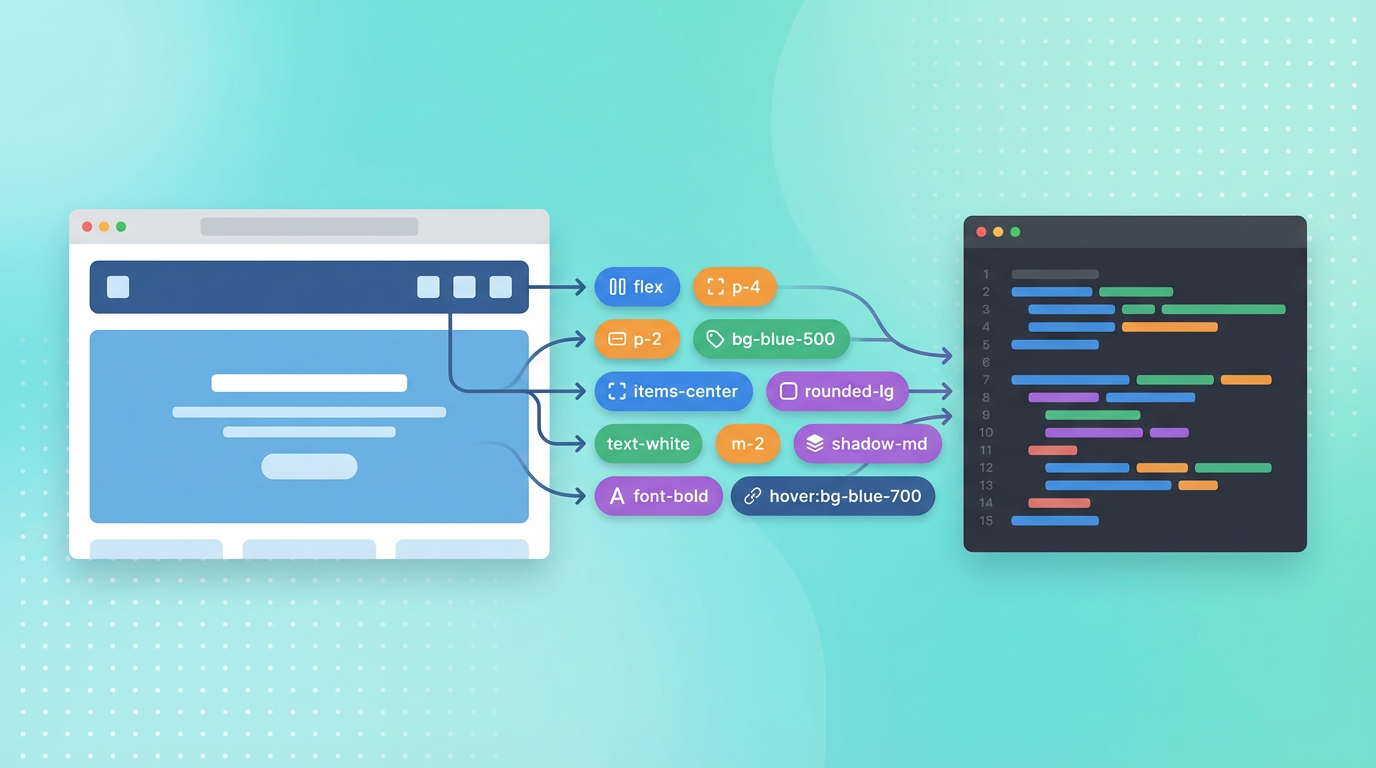
Tailwind CSS has revolutionized how developers write CSS, and now AI can generate Tailwind code directly from screenshots. This comprehensive guide covers everything you need to know about converting screenshots to Tailwind CSS in 2026.
Why Screenshot to Tailwind CSS?
Tailwind CSS offers numerous advantages that make it the preferred choice for many developers:
- Utility-First Approach: Write styles directly in your HTML
- No Context Switching: Stay in your markup without jumping to CSS files
- Consistent Design System: Built-in spacing, colors, and typography scales
- Easy Responsiveness: Simple breakpoint prefixes
- Small Bundle Size: Purges unused styles in production
Converting screenshots directly to Tailwind CSS eliminates the translation step from design to utility classes.
Getting Started
Taking Effective Screenshots
The quality of your screenshot directly impacts the output quality:
Resolution Matters
- Use 2x or Retina resolution when possible
- Minimum 1280px width for web designs
- Avoid heavy compression (use PNG over JPEG)
Capture Techniques
- Full-page screenshots for landing pages
- Section captures for components
- Crop to focus on specific elements
- Remove browser chrome and OS elements
Screenshot Tools
- macOS: Cmd + Shift + 4 (selection) or Cmd + Shift + 3 (full screen)
- Windows: Win + Shift + S (Snipping Tool)
- Browser: DevTools device mode for consistent sizing
- Extensions: Full Page Screenshot, GoFullPage
Uploading to Image2CodeAI
- Navigate to Image2CodeAI
- Sign in to your account
- Select "HTML + Tailwind CSS" as output format
- Upload your screenshot via drag-and-drop or file selection
- Click "Create" to generate code
Understanding the Tailwind Output
Layout Classes
Image2CodeAI generates modern layout code using:
Flexbox Utilities
flex, flex-col, flex-row
items-center, justify-between
gap-4, space-x-2
Grid Utilities
grid, grid-cols-3, grid-cols-12
gap-6, col-span-2
Spacing Classes
Consistent spacing using Tailwind's scale:
Padding
p-4, px-6, py-2
pt-8, pb-4, pl-2, pr-6
Margin
m-4, mx-auto, my-8
mt-6, mb-4, ml-2, mr-auto
Gap (for Flex/Grid)
gap-4, gap-x-6, gap-y-2
Typography Classes
Text styling with Tailwind utilities:
Font Size
text-sm, text-base, text-lg, text-xl, text-2xl
Font Weight
font-normal, font-medium, font-semibold, font-bold
Line Height
leading-tight, leading-normal, leading-relaxed
Color Classes
Background, text, and border colors:
Background
bg-white, bg-gray-100, bg-blue-500
bg-[#FF6B6B] (arbitrary values)
Text
text-gray-900, text-gray-600, text-blue-600
Border
border-gray-200, border-blue-500
Responsive Classes
Mobile-first responsive design:
// Mobile first, then larger screens
text-sm md:text-base lg:text-lg
flex-col md:flex-row
p-4 md:p-6 lg:p-8
hidden md:block
Optimizing Your Workflow
Batch Processing Sections
For large designs, process in sections:
- Header/Navigation: Convert separately for reuse
- Hero Section: Stand-alone conversion
- Feature Cards: Convert one, replicate pattern
- Footer: Separate component
This modular approach yields cleaner, more maintainable code.
Using Prompts for Refinement
After initial generation, use natural language prompts:
Layout Adjustments
- "Make the container max-w-6xl"
- "Add more spacing between sections"
- "Use grid instead of flex for the cards"
Responsive Improvements
- "Stack columns on mobile"
- "Hide sidebar on screens smaller than md"
- "Make text larger on desktop"
Styling Updates
- "Add rounded corners to all cards"
- "Use shadow-lg instead of shadow"
- "Add hover:bg-gray-50 to the buttons"
Component Extraction
Request component-friendly output:
- "Extract the card as a separate section"
- "Make this a reusable component structure"
- "Group related elements logically"
Common Tailwind Patterns
Card Component
A typical card structure from screenshot conversion:
<div class="bg-white rounded-lg shadow-md p-6">
  <img class="w-full h-48 object-cover rounded-t-lg" />
  <h3 class="text-xl font-semibold mt-4">Title</h3>
  <p class="text-gray-600 mt-2">Description text</p>
  <button class="mt-4 bg-blue-500 text-white px-4 py-2 rounded">
    Action
  </button>
</div>
Navigation Bar
Common navigation structure:
<nav class="flex items-center justify-between px-6 py-4 bg-white shadow">
  <div class="text-xl font-bold">Logo</div>
  <div class="hidden md:flex space-x-6">
    <a class="text-gray-600 hover:text-gray-900">Home</a>
    <a class="text-gray-600 hover:text-gray-900">About</a>
    <a class="text-gray-600 hover:text-gray-900">Contact</a>
  </div>
  <button class="bg-blue-500 text-white px-4 py-2 rounded">
    Sign Up
  </button>
</nav>
Hero Section
Typical hero section output:
<section class="py-20 px-6 bg-gradient-to-r from-blue-500 to-purple-600">
  <div class="max-w-4xl mx-auto text-center">
    <h1 class="text-4xl md:text-6xl font-bold text-white">
      Main Heading
    </h1>
    <p class="mt-6 text-xl text-white/80">
      Subheading text goes here
    </p>
    <button class="mt-8 bg-white text-blue-600 px-8 py-3 rounded-lg font-semibold">
      Get Started
    </button>
  </div>
</section>
Tailwind Configuration Tips
Custom Colors
After conversion, add your brand colors:
// tailwind.config.js
module.exports = {
  theme: {
    extend: {
      colors: {
        primary: '#FF6B6B',
        secondary: '#4ECDC4',
      }
    }
  }
}
Custom Spacing
If your design uses non-standard spacing:
theme: {
  extend: {
    spacing: {
      '18': '4.5rem',
      '22': '5.5rem',
    }
  }
}
Custom Fonts
Add your fonts to the configuration:
theme: {
  extend: {
    fontFamily: {
      sans: ['Inter', 'sans-serif'],
      heading: ['Poppins', 'sans-serif'],
    }
  }
}
Troubleshooting
Colors Don't Match
Problem: Generated colors differ from design.
Solutions:
- Use arbitrary values:
bg-[#FF6B6B] - Configure custom colors in Tailwind config
- Use prompt: "Use exact color #FF6B6B for the button"
Spacing Feels Off
Problem: Spacing doesn't match original.
Solutions:
- Use prompts to adjust: "Increase padding to p-8"
- Configure custom spacing in Tailwind config
- Check for consistent Tailwind scale usage
Responsive Issues
Problem: Layout breaks on certain screen sizes.
Solutions:
- Add responsive variants: "Add md:flex-row for medium screens"
- Test at standard breakpoints (640px, 768px, 1024px)
- Use browser DevTools to identify issues
Text Rendering Differently
Problem: Fonts look different than design.
Solutions:
- Add the correct fonts to your project
- Update font-family in Tailwind config
- Adjust font-size and line-height classes
Advanced Techniques
Dark Mode Support
After initial conversion, add dark mode:
Use prompt: "Add dark mode variants"
The AI will add dark: prefixes:
bg-white dark:bg-gray-900
text-gray-900 dark:text-white
Animation Classes
Request animation additions:
- "Add hover:scale-105 transition to cards"
- "Add animate-pulse to the loading state"
- "Add smooth transitions to all interactive elements"
Arbitrary Values
For exact specifications, use Tailwind's arbitrary syntax:
w-[732px]for exact widthstext-[15px]for non-standard sizesbg-[#FF6B6B]for exact colors
Workflow Integration
With Next.js
- Generate Tailwind code from screenshot
- Create component file
- Paste generated code
- Import in your page
With Vite
- Generate code
- Create component in
src/components/ - Paste and adjust imports
- Use in your application
With Plain HTML
- Generate Tailwind output
- Paste into HTML file
- Ensure Tailwind CDN or build is configured
- Ready to use
Conclusion
Converting screenshots to Tailwind CSS has never been easier. With AI-powered tools like Image2CodeAI, you can:
- Save hours of manual CSS work
- Get consistent Tailwind utility usage
- Maintain responsive designs automatically
- Focus on logic instead of styling
The key to success is quality screenshots, appropriate use of prompts for refinement, and understanding how to integrate the output into your project.
Start converting your screenshots to Tailwind CSS today and experience the productivity boost that comes with AI-assisted code generation.
Ready to convert your first screenshot? Try Image2CodeAI and generate Tailwind CSS code in seconds.