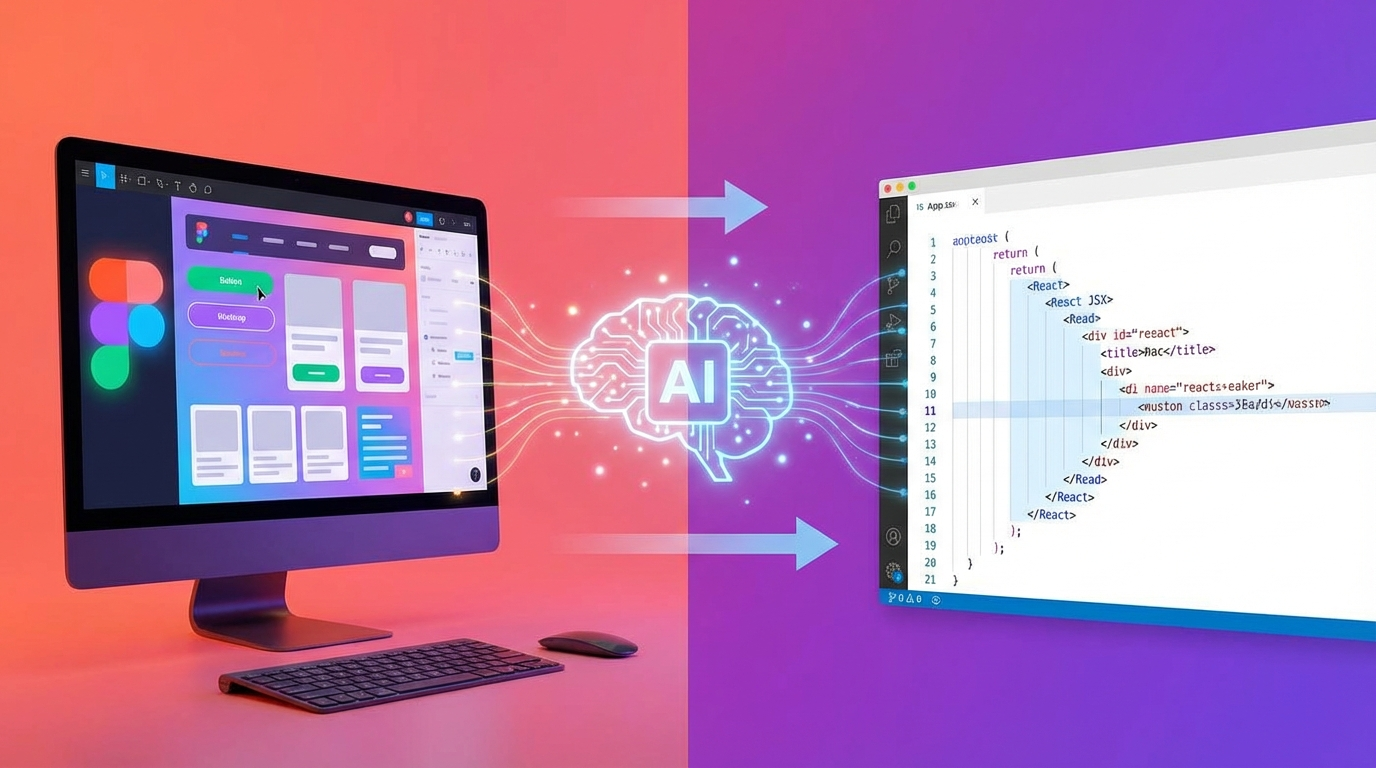
Converting Figma designs to React code has traditionally been a time-consuming process. Developers spend hours manually translating visual designs into JSX and CSS. With AI-powered tools like Image2CodeAI, you can now transform Figma exports into production-ready React components in seconds.
Why Convert Figma to React with AI?
The traditional Figma-to-code workflow involves:
- Inspecting each element in Figma
- Manually writing JSX structure
- Extracting colors, spacing, and typography
- Creating responsive styles
- Testing and adjusting
This process can take hours for a single page. AI-powered conversion reduces this to minutes while maintaining accuracy.
Preparing Your Figma Design for Export
Before converting, optimize your Figma design for the best results:
1. Clean Up Your Layers
- Name your layers descriptively (e.g., "hero-section", "nav-button")
- Group related elements logically
- Remove hidden or unnecessary layers
- Flatten complex overlapping elements
2. Use Consistent Spacing
- Stick to an 8px grid system when possible
- Use auto-layout in Figma for consistent spacing
- Ensure padding and margins are uniform
3. Set Up Typography
- Use a limited number of font sizes
- Maintain consistent line heights
- Ensure text is readable at the sizes shown
4. Check Color Consistency
- Use Figma's color styles for consistency
- Ensure sufficient contrast for accessibility
- Limit your color palette to essentials
Step-by-Step: Converting Figma to React
Step 1: Export Your Design
In Figma, export your design as an image:
- Select the frame you want to convert
- Go to File > Export
- Choose PNG or JPG format
- Use 2x scale for better quality
- Click Export
Pro Tip: Export at 2x resolution for better text recognition and detail capture.
Step 2: Upload to Image2CodeAI
- Go to Image2CodeAI
- Sign in to your account
- Click on the upload area or drag and drop your exported image
- Select "React + Tailwind" as your output format
Step 3: Generate Your React Component
Click "Create" and watch as Image2CodeAI:
- Analyzes your design layout
- Identifies components and sections
- Generates React functional component code
- Applies Tailwind CSS classes
Step 4: Review the Output
The generated code will appear alongside a preview:
- Compare the preview to your original design
- Check the JSX structure
- Verify Tailwind classes are appropriate
Step 5: Refine with Prompts
Use natural language to adjust the output:
Layout adjustments:
- "Make the container max-width larger"
- "Add more spacing between sections"
- "Center the content vertically"
Styling changes:
- "Use rounded-lg instead of rounded-full"
- "Add hover effects to the buttons"
- "Make the background gradient"
Responsive improvements:
- "Add mobile responsiveness"
- "Stack columns on small screens"
- "Hide sidebar on mobile"
Step 6: Copy and Integrate
Once satisfied:
- Click "Copy Code"
- Paste into your React project
- Import any required dependencies
- Adjust as needed for your specific setup
Best Practices for Figma to React Conversion
Component Breakdown
For complex pages, convert section by section:
- Export and convert the header separately
- Convert hero sections individually
- Handle repeating patterns (cards, lists) as reusable components
This approach results in cleaner, more maintainable code.
Typography Mapping
After conversion, map fonts to your project:
The AI will use sensible defaults, but you may need to:
- Add your custom fonts to the project
- Update font-family references in Tailwind config
- Adjust font sizes to match your design system
Color Customization
The generated code uses Tailwind's color palette or arbitrary values. To match your brand:
- Update your
tailwind.config.jswith custom colors - Use the prompt feature: "Replace blue-500 with primary color"
- Or manually search and replace color classes
Responsive Considerations
Image2CodeAI generates responsive code, but you may need to:
- Test on actual devices
- Adjust breakpoints for your specific needs
- Add or modify responsive variants
Common Scenarios
Converting a Landing Page
- Export the entire landing page at 2x
- Upload and generate React code
- Use prompts to add:
- Navigation menu functionality
- Scroll animations
- Form interactions
Converting a Dashboard UI
- Export dashboard sections separately
- Convert each section to a component
- Combine in a layout component
- Add state management as needed
Converting a Mobile App Design
- Export mobile frames at appropriate resolution
- Use React output for React Native-like structures
- Adjust styling for mobile-first approach
- Test responsiveness thoroughly
Handling Complex Components
Cards and Repeating Patterns
If your design has cards or lists:
- Identify the pattern
- Convert once
- Use the prompt: "Extract this as a reusable Card component"
- Map over data in your implementation
Navigation Menus
For navigation:
- Convert the nav design
- Add state for mobile menu toggle
- Implement routing links for your framework
- Add active state styling
Forms
For form designs:
- Convert the visual structure
- Add form element attributes (name, type, required)
- Implement form handling logic
- Add validation as needed
Integration with Next.js
The generated React components work seamlessly with Next.js:
App Router (Next.js 13+)
- Create your component file in
app/components/ - Paste the generated code
- Import and use in your pages
- Add 'use client' directive if needed for interactivity
Pages Router
- Create components in
components/directory - Paste generated code
- Import in your pages
- Works out of the box
Troubleshooting Common Issues
Text Not Appearing Correctly
Solution: Ensure your export is high resolution (2x or 3x) and text is not anti-aliased heavily.
Layout Slightly Off
Solution: Use prompts to refine: "Increase padding", "Add gap between items", "Align items to center".
Missing Elements
Solution: For complex overlapping elements, try simplifying the design or converting sections separately.
Colors Don't Match Exactly
Solution: Use Tailwind's arbitrary value syntax bg-[#FF6B6B] or configure custom colors in your Tailwind config.
Time Savings Comparison
Simple landing page - Traditional: 4-6 hours → With Image2CodeAI: 15-30 minutes
Dashboard component - Traditional: 2-3 hours → With Image2CodeAI: 10-20 minutes
Card component - Traditional: 30-60 minutes → With Image2CodeAI: 2-5 minutes
Navigation bar - Traditional: 1-2 hours → With Image2CodeAI: 5-10 minutes
Conclusion
Converting Figma designs to React code with AI transforms the design-to-development workflow. What used to take hours now takes minutes, letting you focus on business logic, interactions, and refinements rather than pixel-perfect CSS translation.
The key to success:
- Prepare your Figma designs well
- Export at high resolution
- Use the right output format (React + Tailwind)
- Leverage prompts for refinement
- Integrate thoughtfully into your project
Start converting your Figma designs today and experience the productivity boost that AI-powered code generation provides.
Ready to convert your first Figma design? Try Image2CodeAI now and transform your workflow.